 Pomofast
Getting Started with Pomofast: From Goals to Done in One Session
A step-by-step tour of Pomofast: build your goal tree, queue tasks in Next, pull one into Wip, run a Pomodoro, and finish with a Done list. Mouse and keyboard.
By Sean Bennett · · 8 min read
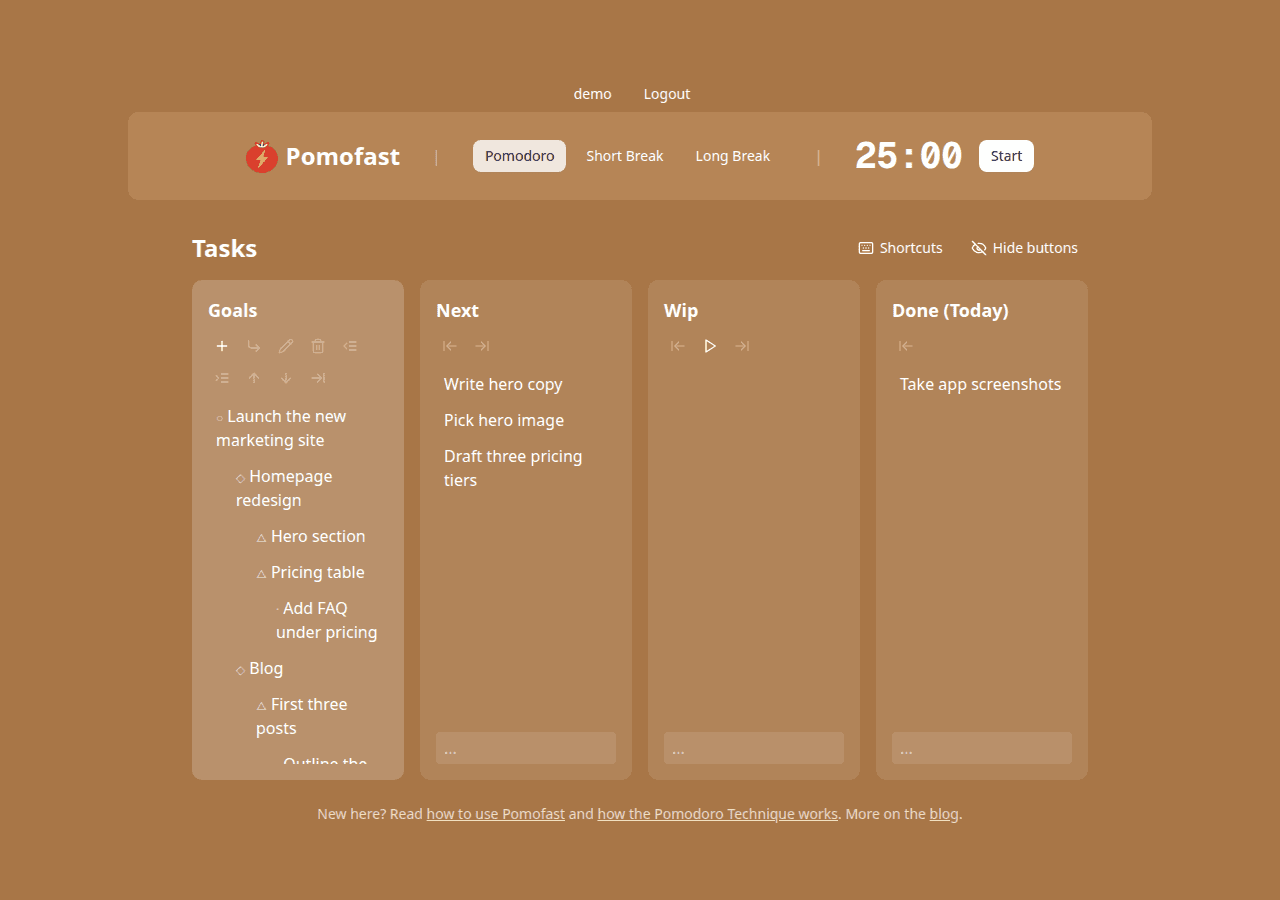
Pomofast is a Pomodoro timer and a small task board in one screen. The board is the part most timer apps skip: it is where you decide what the next 25 minutes are for. This walkthrough takes a blank board to a finished task, with the mouse and with the keyboard.
What you will end up with
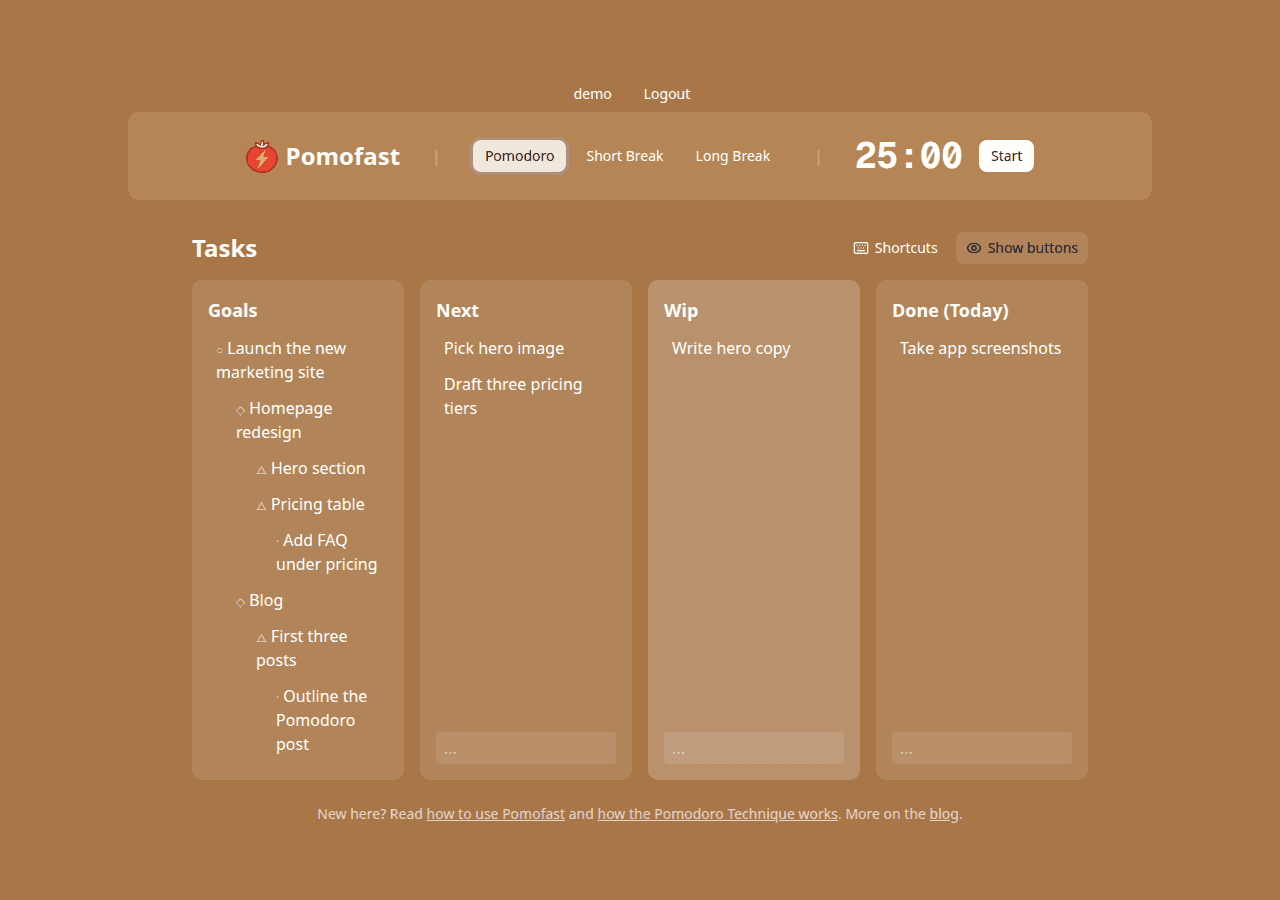
The board has four columns. Goals holds everything you might do, as a tree. Next is the queue for today. Wip is the one task you are doing right now. Done (Today) collects what you finished. Tasks move left to right, and the timer in the header runs on top of it all.
Step 0: Open the app and decide whether to sign in
Pomofast runs in the browser, nothing to install. You can use the whole board without an account, which is a good way to try it, but nothing is saved between visits. Click Login / Sign Up, choose a username and a password, and your board and preferences are kept in your own account.
Step 1: Write your first goal
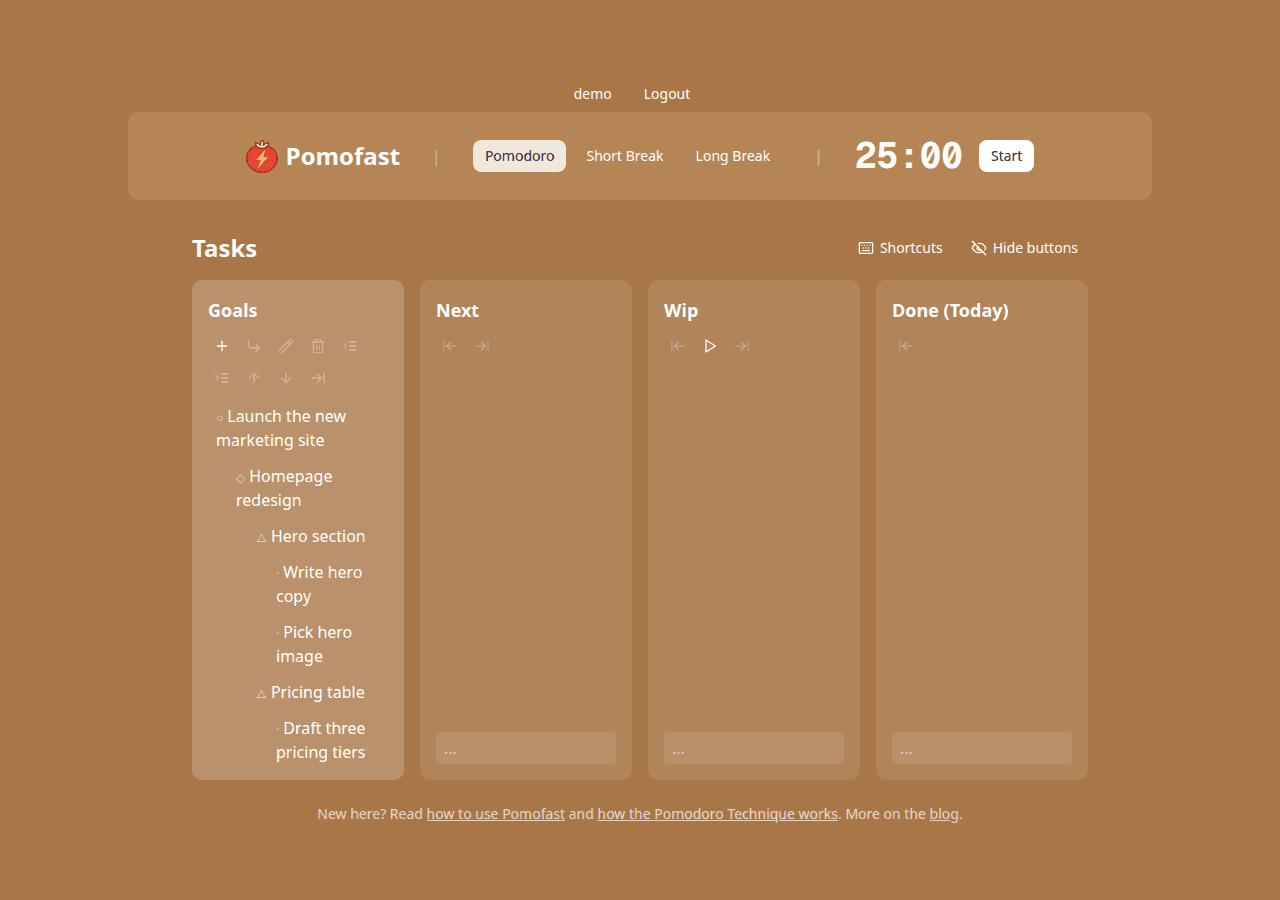
With the board empty, press Enter or click the placeholder text in the Goals column. Type the goal and press Enter again to save it. Goals are big outcomes, the kind that take weeks: Launch the new marketing site, Learn Spanish, Ship version 2.
You can also click the + button in the Goals toolbar at any time to add another top-level goal.
Step 2: Break it down
Select the goal and press Shift+Enter to add a child underneath it. The tree has four levels, each with its own marker:
| Level | Marker | Example |
|---|---|---|
| Goal | ○ | Launch the new marketing site |
| Project | ◇ | Homepage redesign |
| Feature | △ | Hero section |
| Task | · | Write hero copy |
A new child is created one level deeper than its parent. Adding a child to a task creates a sibling task instead, because tasks are the leaves. Use Tab and Shift+Tab (or the indent and outdent buttons) to change the level of an item, Shift+↑ and Shift+↓ to reorder it among its siblings, and Delete to remove an item along with everything under it.
You do not have to fill in every level. A goal with a couple of tasks directly under a project is fine. The point of the tree is that every task is attached to a reason, which is what makes it easy to say no to tasks that are not.
Step 3: Queue today’s tasks in Next
Select a task and press Tab, or click the Send task to Next button. The task leaves the tree and joins the Next column. Only tasks can be queued; a project or feature has to be broken down first. Queue the handful of tasks you intend to do today, in the order you want to do them.
Changed your mind? In Next, Shift+Tab sends a task back to its place in the Goals tree.
Step 4: Pull one task into Wip and start the timer
Select the first task in Next and press Tab (or the Move to Wip button). Then press Enter while Wip is focused, or click Start in the header. The timer begins counting down from 25:00 and the header shows the full path of the task, from goal down to the task itself.
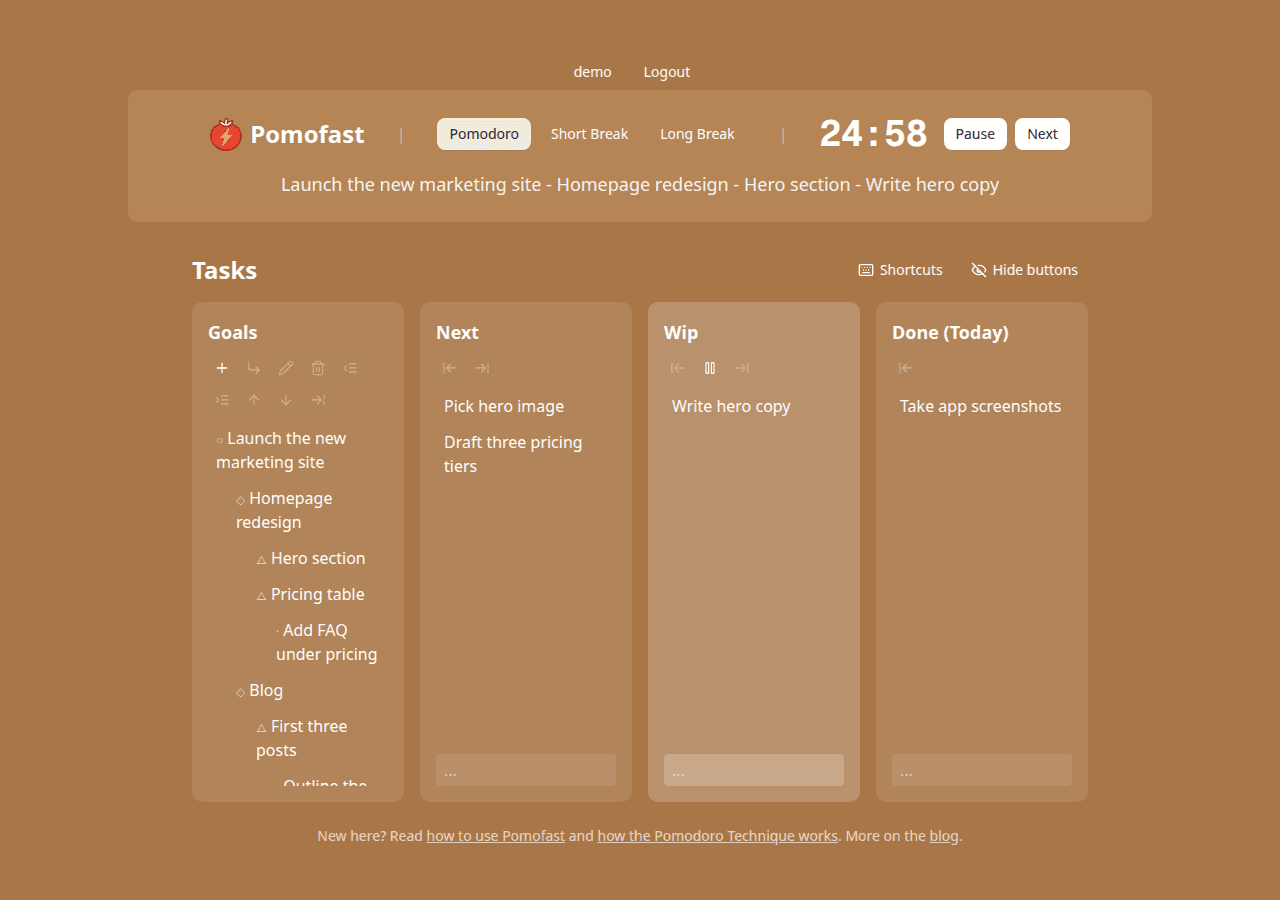
If you get pulled away, Enter (or the Pause button) pauses the session. Reset appears when a paused timer has time elapsed, and restarts the current interval.
Step 5: Finish the task
When the task is done, press Tab in Wip or click Move to Done. It lands in Done (Today), your record of the day. If the task turned out to be bigger than one session, leave it in Wip and start another Pomodoro. If you finish early, use the remaining minutes to review the work, then let the timer run out; the break is part of the method, not a reward for finishing.
Moved something too early? In Done, Shift+Tab sends it back to Wip, or to Next if Wip is already occupied.
Step 6: Take the break
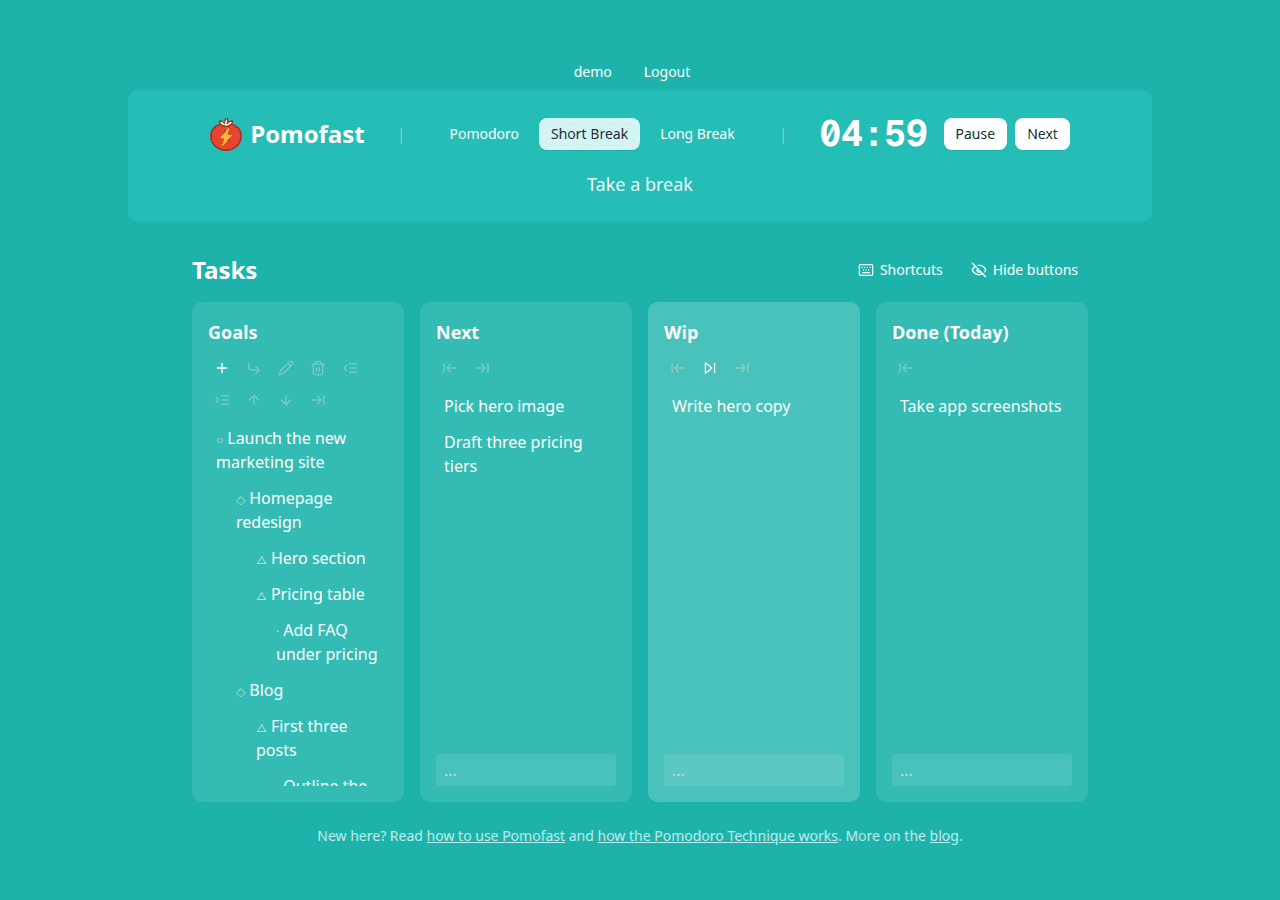
When the Pomodoro ends, an alarm sounds and the app switches to the 5-minute short break. Press Start, stand up, and leave the screen. When the break ends, the next Pomodoro starts automatically. After four Pomodoros the app schedules a long break instead. Read more about why the breaks matter in our explanation of the Pomodoro Technique.
Keyboard or buttons, your choice
Everything above can be done by clicking. The buttons under each column heading perform the same actions as the shortcuts and show the key combination when you hover them. Press ? at any time (or click Shortcuts) to open the full list.
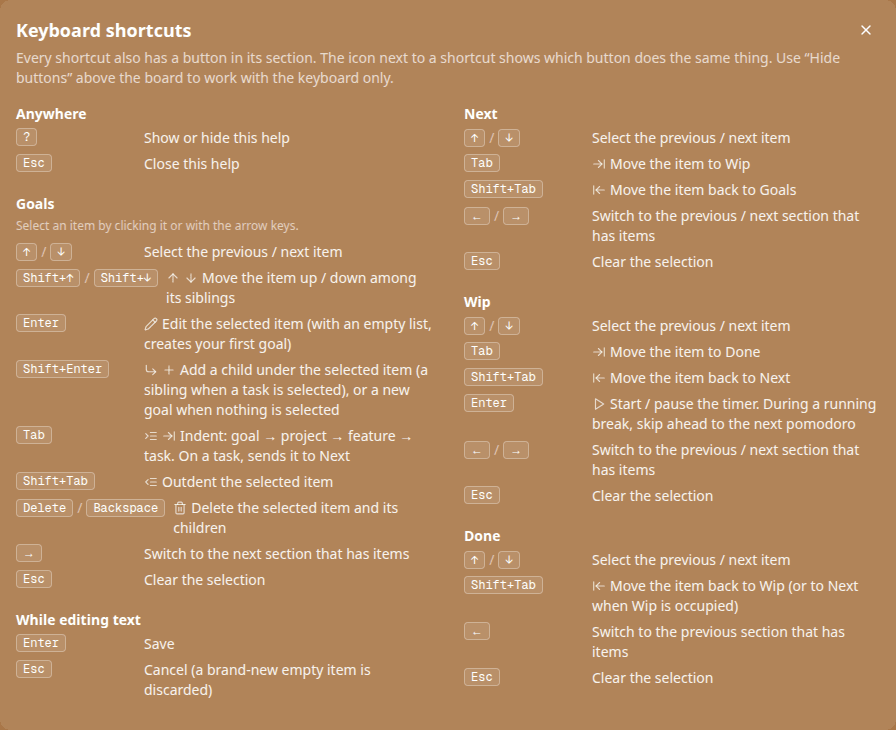
Once the keys are in your fingers, click Hide buttons above the board. The toolbars disappear, the columns get a little roomier, and the choice is remembered for your account, so it sticks across devices and browsers.
Cheat sheet
| Key | In Goals | In Next / Wip / Done |
|---|---|---|
| ↑ ↓ | Select the previous / next item | Select the previous / next item |
| Enter | Edit the selected item | In Wip: start or pause the timer |
| Shift+Enter | Add a child (or a new goal when nothing is selected) | – |
| Tab | Indent; on a task, send it to Next | Move the item one column to the right |
| Shift+Tab | Outdent | Move the item one column to the left |
| Shift+↑ / ↓ | Reorder among siblings | – |
| ← → | Switch between columns | |
| Delete | Delete the item and its children | – |
| ? | Show or hide the shortcuts panel | |
That is the whole tool. For a routine that turns it into a full working day, see How to Plan Your Day with Pomodoro.
Frequently asked questions
Do I need an account to use Pomofast?
No. The timer and the board work without signing in, which is the easiest way to try it. An account (username and password) is what makes your board and preferences persist between visits.
Why can I only move tasks into Next, not projects or features?
Because a Pomodoro needs something concrete to work on. Projects and features are containers; breaking them into tasks first is what turns a vague intention into a session you can actually start.
Can I change the timer lengths?
The defaults are the classic 25-minute Pomodoro, 5-minute short break and 15-minute long break, which we recommend keeping for at least a couple of weeks. Custom lengths are not exposed in the interface yet.